Website Images: Balance Good Photography, Fast Loading, and Useful Alt Text
A useful website image earns its place by showing something the customer needs to understand. Then it needs to be prepared for the space where it appears, delivered efficiently, and described appropriately for people who cannot see it. Image quality and website performance should be planned together.

For a Chicagoland service business, a clear photograph of the work, the space, or a meaningful detail often explains more than a generic business handshake. The best choice is not necessarily the most dramatic image in the folder. It is the one that answers the visitor’s next question.
Decide what the image is supposed to explain
Write a one-sentence purpose before choosing a photograph. “Show the finished installation in a small room” is useful. “Make this section look less empty” is a reason to reconsider the layout.
Different pages need different evidence. A service page may need to show the type of job you handle. A team page may need current, accurate photographs of the people customers will meet. A process article may benefit from an illustration that simplifies the steps.
Use permissioned real project photography when the purpose is to demonstrate actual work. If an image is generated or represents a concept, present it as an illustration. Do not let a visitor reasonably mistake a fictional scene for a completed client project.
Prepare the crop for the place it will appear
A wide desktop banner and a narrow mobile card may need different compositions. Check that the important subject remains visible when the image is cropped. Faces, equipment details, or a finished installation can disappear at the edge of a layout that looked fine on a larger screen.
Keep important words out of the image when ordinary page text can carry them. Text embedded in a photograph becomes harder to resize, translate, and update. A headline placed as real text next to the image is usually easier to maintain.
Give the original asset a descriptive filename and keep it organized separately from exported website versions. That makes future changes easier, especially when several people manage the site.
Match delivery to the visitor’s screen
An image can display at a small size while still making the browser download a large file. Responsive image delivery provides suitable image options for different circumstances. web.dev’s responsive-image guidance explains that approach and the value of reserving image dimensions to reduce layout movement.
Your website platform may manage some of this automatically. Check the published result instead of assuming that every upload is optimized. Compare the actual page on mobile and desktop, and inspect the large visual near the top of the page if loading feels slow.
There is no single file-size target that suits every photograph, screen size, and placement. Start with a sensible export, compare its visible quality, and test the page. A small thumbnail and a detailed portfolio photograph have different needs.
Write alt text for the image’s role
Alternative text should convey relevant information or function. W3C’s writing guidance distinguishes meaningful descriptions from decorative images that do not need a spoken description.
For a hypothetical project photo, “Custom shelving fitted around a narrow office doorway” gives useful information. “Best office renovation Mount Prospect Chicago shelving contractor” is a keyword list, not a description. Mention the location only if it is relevant and verified.
A linked image needs a description that helps explain its destination or purpose. A complex diagram may need a fuller explanation in the surrounding text. Alt text is part of the reading experience, so write it alongside the page rather than treating it as an SEO box to fill at the end.
Use a repeatable upload check
Before a new image goes live, check:
Its purpose on the page is clear.
The image rights and any necessary permissions are documented.
Desktop and mobile crops preserve the important subject.
The delivered image looks sharp without unnecessary weight.
The layout remains stable while the page loads.
Alt text matches the image’s role and surrounding content.
This routine is especially useful when a business updates its own gallery. A short documented process helps keep new uploads consistent with the original design.
Common questions
Should every image have a detailed description?
No. Informative images need appropriate text alternatives. Pure decoration should not make a screen-reader user listen to irrelevant detail.
Can I use generated images on a business website?
They can work well for clearly illustrative subjects. Use real, permissioned imagery when the page is presenting actual people, products, facilities, or completed work.
Luminous Tulip brings content and imagery into the same website design process. Get in touch if your pages look good in the editor but struggle on a phone.
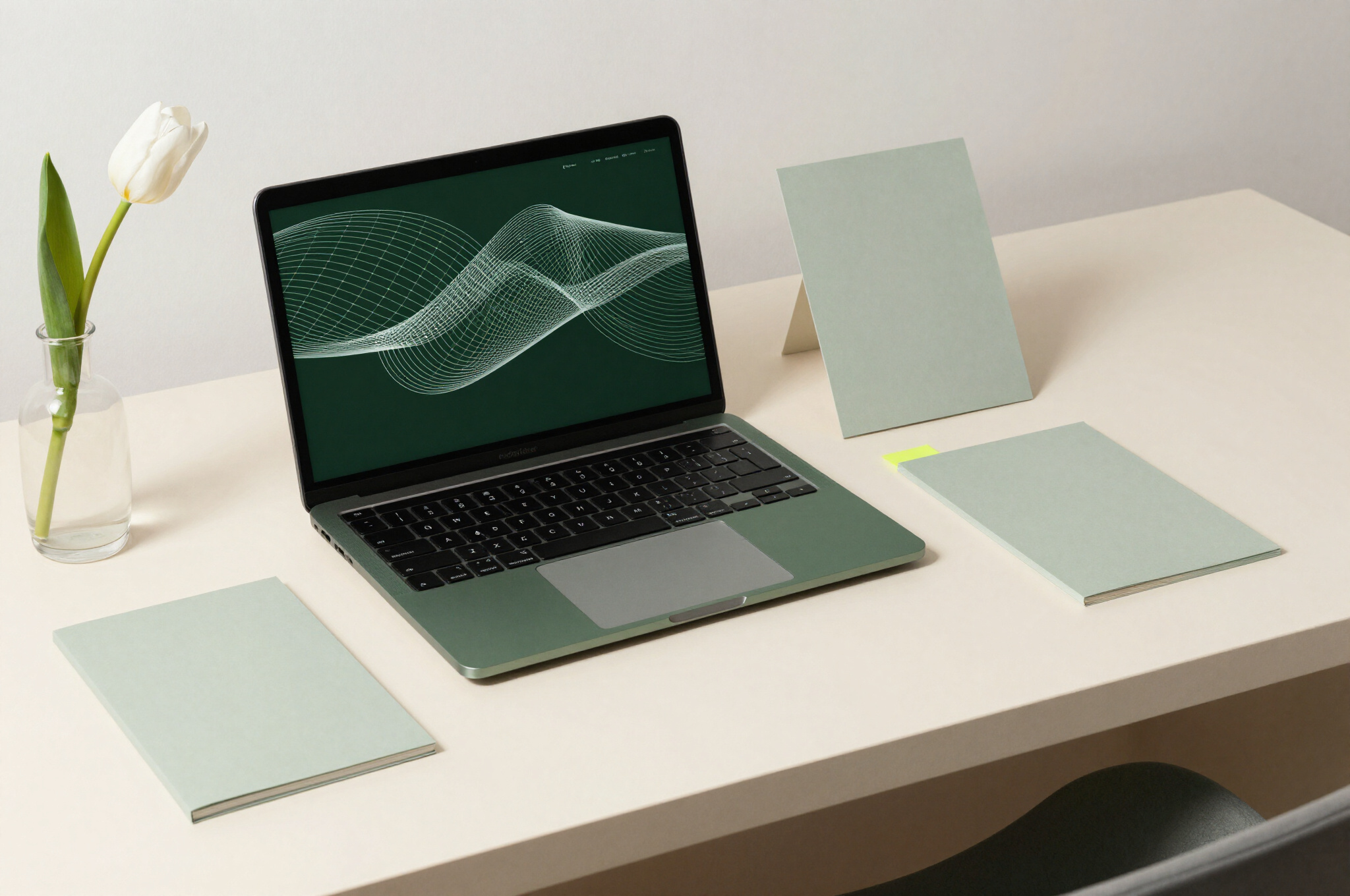
This article was researched and drafted using AI. Its illustration is AI-generated. Sources are linked for reference.
Related reading: A Practical Website Redesign Checklist for Small Businesses